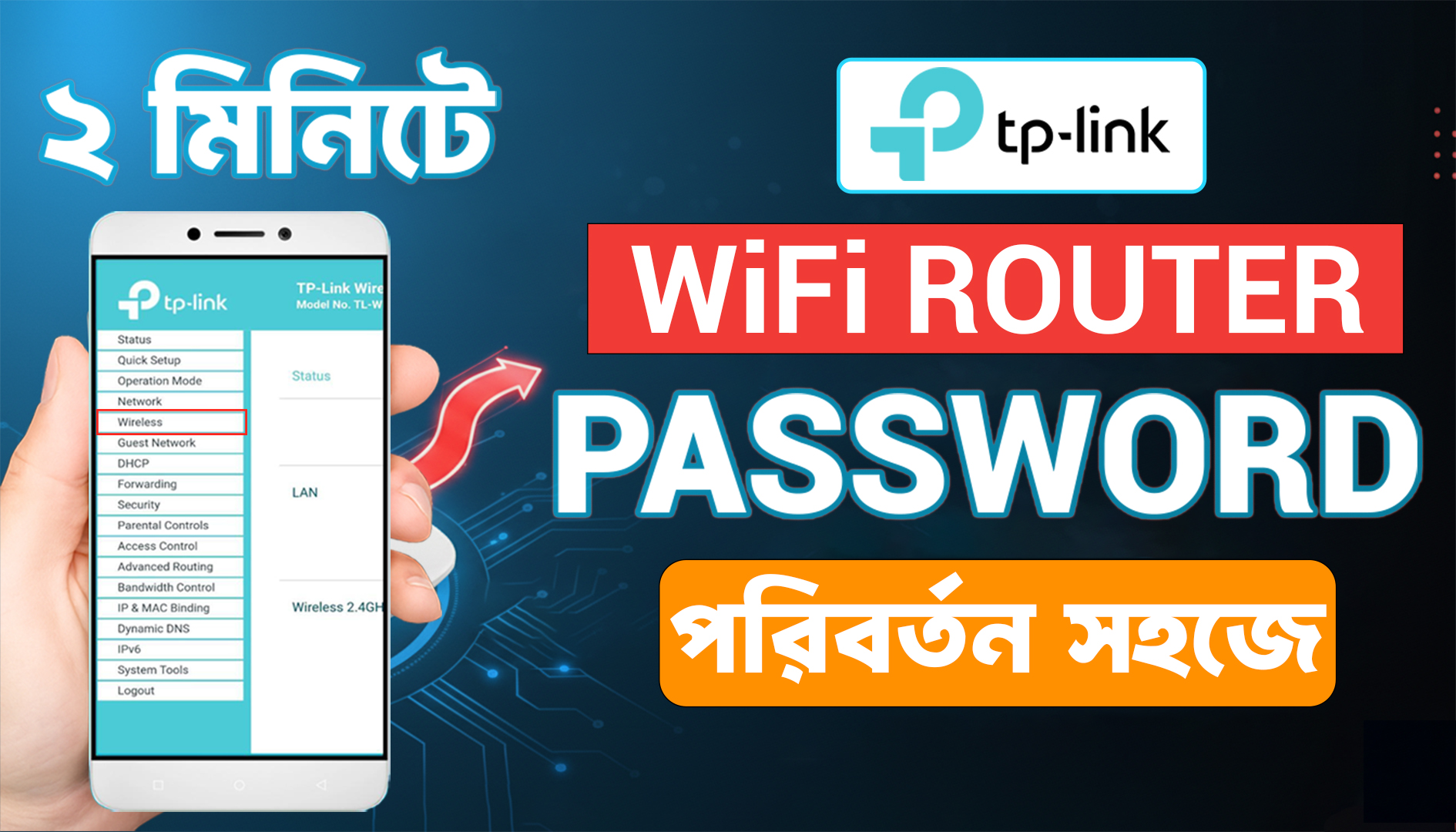
How To Change Your Tp Link Router Wifi Password In Mobile
25 Oct 2025

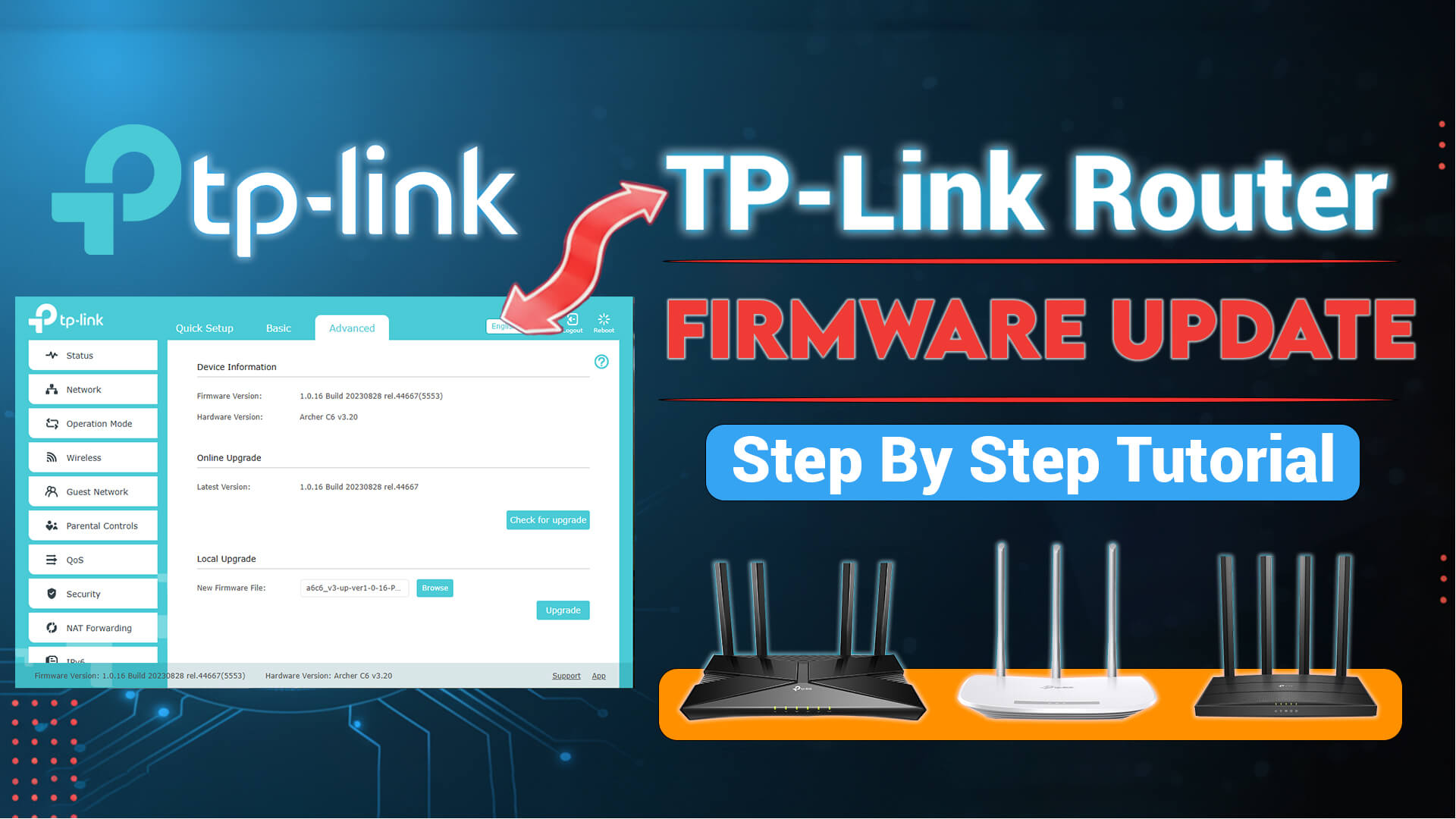
Hey guys! 👋 In this video, I’ll show you how to update your TP-Link WiFi router firmware step-by-step. Updating your router firmware is important to get better performance, fix bugs, and improve network security.
If you want, you can watch the video from YouTube: How To Update TP Link WiFi Router Firmware In this tutorial, I’ll cover: ✅ How to check your router model and hardware version ✅ How to download the correct firmware from the official TP-Link website ✅ How to extract and select the .bin firmware file ✅ How to upload and install the firmware on your router ✅ Important precautions during the upgrade process Whether you’re using a TP-Link Archer, N series, or any other TP-Link model, the firmware upgrade process is almost the same.
Before upgrading the router firmware version, first, we need to check the router model and hardware version. The same model router it can be two different hardware versions We can check it physically from the router label, or if we want, we can also check it after logging into the router’s web interface. Here, we can see the router model and the hardware version. Most of the TP-Link wifi routers have a similar firmware upgrade mechanism. Suppose our router model is Archer C6, and the hardware version is 3.20 Now that we know our router model and hardware version, we need to download the firmware from the TP-Link official website. We will search for our desired model there. from the TP-Link website Once we find our model, we have to click on the Support link. From there, we can download the firmware for the same model but for different hardware versions. Our router’s hardware version is 3.20, so we will select 3.20 and download that firmware. After downloading, we need to extract the ZIP file. Inside the extracted files, we will only use the .bin file for the upgrade process. Next, we will log in to our router, click on the Advanced tab, then go to System, and select Firmware Upgrade. From here, we will choose the .bin file and then click on the Upgrade button. It will take some time to complete the upgrade. Do not interrupt the process, and do not turn off the router’s power during the upgrade. After some time, the upgrade will be completed successfully.
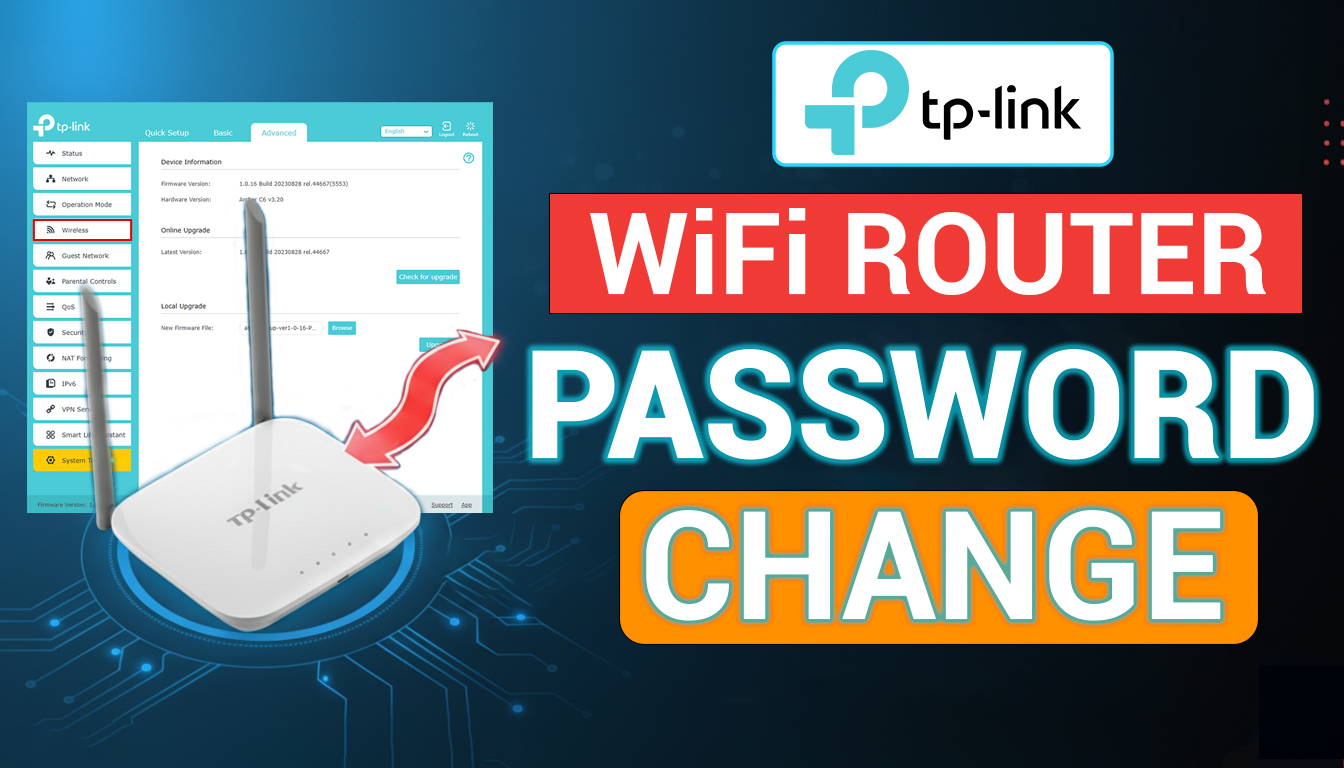
25 Oct 2025
21 Oct 2025
(1) Comments
m98 ทางเข้า
Hello just wanted to give you a quick heads up and let you know a few of the images aren't loading correctly. I'm not sure why but I think its a linking issue. I've tried it in two different internet browsers and both show the same results.
m98 ทางเข้า
hey there and thank you for your info – I've definitely picked up anything new from right here. I did however expertise some technical points using this website, since I experienced to reload the website a lot of times previous to I could get it to load correctly. I had been wondering if your hosting is OK? Not that I'm complaining, but slow loading instances times will very frequently affect your placement in google and can damage your high quality score if advertising and marketing with Adwords. Anyway I am adding this RSS to my e-mail and could look out for much more of your respective fascinating content. Ensure that you update this again very soon.
Write a comment